Wednesday, July 11, 2012

Linksys Smart Wi-Fi Router EA4500

If you want a robust router for your home network that works so well that once set up you can just forget about it, the Linksys Smart Wi-Fi Router EA4500 is not necessarily for you. This is a router that you will check on regularly, not so much because you have to, but more because you want to.

The router is the first in the Linksys EA series that Cisco launched two months ago. It didn't get reviewed until now because the heart of the new series, the Cisco Connect Cloud solution, went live just last week. After playing with the new cloud-based approach to home routers for a few days, I can confidently say that it will change the way you think about networking entirely, mostly for better.

Note that this is the review of the Linksys EA4500 router. I did a separate review of the Cisco Connect Cloud solution for home networking that can be found here.

The Linksys EA4500 is very similar to the Linksys E4200 v2, boasting a great design, 450Mbps Wi-Fi speed on both 5GHz and 2.4GHz bands, a fast processor for network storage when coupled with an USB external hard drive, and the ability to host up to 50 guest clients. In fact, I found out via testing that the two routers offered very similar performance. This means that when Cisco Connect Cloud firmware becomes available for the E4200 v2, it will essentially be an EA4500 router, making it a great deal since currently it costs about $20 less than the EA4500.

That said, the EA4500 is not perfect; it lacks support for 802.11ac and doesn't offer a way for users to manage it without having to log in with an Cisco Connect Cloud account. Its 2.4Ghz band's performance could also use some improvement.
Nonetheless, at around $170, the new router makes an exciting home networking solution and an excellent investment. Those who are more comfortable with the traditional way to manage a home network, or feeling uneasy -- and rightfully so, because Cisco Connect Cloud requires a constant connection to Cisco to work, which might lead to privacy risks -- should also check out other great alternatives, such as the Asus RT-N66u or the Netgear R6300.

Design and ease of use
The Links EA4500 look exactly the same as the Linksys E4200 and Linksys E4200 v2. Similar to the rest of routers in the Linksys E and Linksys EA series, the EA4500 more resembles a jewelry box than a networking device, with its flat shape and glossy, smooth-finish top. The router shares the same compact power adapter as the Linksys E4200 v2.

Like the E4200 v2, the new EA4500 4-gigabit LAN ports and 1-gigabit WAN port on the back. There's also a push button for the Wi-Fi Protected Setup (WPS) feature, a recessed reset button, and a USB 2.0 port that can host a printer or a USB external storage device for the router's network-attached storage (NAS) function.

Like all routers in the EA Series, the E4500 originally comes with a classic Web interface, and Cisco Connect software that helps novice users set up and manage the router very easily. However, starting June 26, the new Cisco Connect Cloud firmware has been automatically pushed to EA series routers, except for those that have been explicitly opted out of the automatic firmware update setting. For those who have been anticipating Cisco Connect Cloud, this is a good thing. For others it might just be an unpleasant surprise.
This is because together with the new firmware, the router can no longer be administrated without a Cisco Connect Cloud account, which requires a live Internet connection to work. While it's quite easy to get an account (and it's free), this also means the router is now connected to Cisco at all times, whether or not you want it. On top of that, the new interface is so different from the previous version that most users will at first have problem finding where things are.

Basically, the new interface now has two parts, Apps and Router Settings. Apps, or embedded apps, are the features of the router, while Router Settings contains all the common wireless router settings. Though I find this is a better way to organize things, it's completely different from any other traditional Web interface for routers and understandably has a bit of a learning curve to say the least.

Note that if you buy a new EA4500 now, chances are it's already preloaded with Cisco Connect Cloud firmware.

Personally, I find the Cisco Connect Cloud a welcome change; I was able to program the EA4500 to do all I needed for an advanced home network network with lots of customized settings. I did notice one odd thing about the new Cisco Connect Cloud interface: the password for a DynDSN service, if you use one with the router, is no longer masked as asterisks but appears in plain characters. This poses a risk of losing your DynDNS account if somebody happens to see your computer's screen when you're changing the router's settings.

Whether you have an existing EA4500 router with an updated firmware or one that comes with Cisco Connect Cloud firmware preinstalled, it's very easy to get the router up and running. The only step you need to do is go to the router's IP address, which by default is 192.168.1.1, sign in via a Cisco Connect Cloud account and associate the router with that account by typing in the router's admin password (by default it's admin). From then on, each time you want to change the router's settings or manage its features, you can sign in via the Cisco Connect Cloud portal, or via the Cisco Connect Cloud mobile app.

Note that currently, the only easy way for you to manage the router without having to sign in with Cisco Connect Cloud is disconnect it from the Internet. In this case, however, you can only manage the Router Settings part, minus the Security portion. On the other hand, even if you're fine with the fact that your home router's connected to Cisco, note that the router's settings and features can't be changed if the Cisco Connect Cloud portal is down. The router itself will still function with its existing settings, however.

The good news is if you want to avoid having to use the Cisco Connect Cloud entirely, you can. You just need to switch back to the classic Web interface by downloading the previous version of the firmware from the Cisco Support page and then reflashing the router. After that, make sure you don't opt for the automatic firmware update.
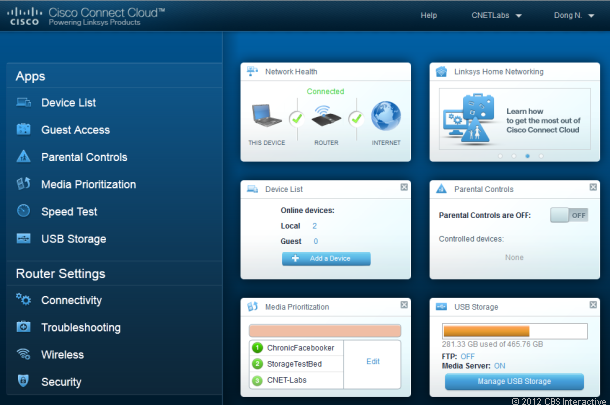
 Being the current top-tier home router, the Linksys Smart Wi-Fi Router EA4500 offers all that Cisco's new Connect Cloud has to offer.
(Credit: Dong Ngo/CNET)

View the original article here

Samsung Chrono 2 (U.S. Cellular)

If phones like the Chrono 2 were your only frame of reference for Samsung, you might think that the company hasn't progressed at all in the last decade. Indeed, Sammy has replicated this simple flip-phone design many times. Like the original Chrono, it has a postage-stamp-size external display, a flat alphanumeric keypad, and a smooth, slender profile that resembles a pebble.

Thankfully, Samsung has grown quite a bit in the last 10 years, but it's good to know that the company hasn't completely abandoned the tried and true. Like its many predecessors, the Chrono 2's retro design is perfectly suited for making calls and basic phone functions. No, you don't get the kitchen sink, but you do get a user-friendly phone that does exactly what it's supposed to do.

The Chrono 2, aka the SCH-R270, is available with U.S. Cellular for free by singing a new contract or just $19.99 if you prefer to go prepaid.

Design
I have to admit that in this age where almost everyone has a smartphone, I felt a little strange using the Chrono 2 on the street. Indeed, it's been years since I've owned a flip phone or even had one in for review. Yet, I have to admit that it also left me feeling comfortably nostalgic. Perhaps it was a combination of flipping the phone open, the familiar clacking sound when it closes, or trying to remember how to text using T9 (believe me when I say that T9 isn't like riding a bicycle). Then again, maybe it was the fact that the Chrono 2 is so small (3.79 inches long by 1.88 inches wide by 0.73 inch deep) and lightweight (3.6 ounces) that I forgot I had it in my pocket. As far as I could tell, only one person gave me a weird look when I was using the Chrono 2 to snap photos, but that could have been due to entirely different reasons.

As I mentioned, the Chrono 2's smooth lines and rounded ends will remind you of a small stone that you find on the beach. The red accents add some style to the basic black skin, and I like the textured battery cover. The skin is plastic, so I'd avoid banging the phone around, but the hinge is large and sturdy. The 1.3-inch external display supports full color and you can change the wallpaper and clock style. It shows the date, time, battery, life, and signal strength and you can use it as a viewfinder when taking self-portraits. One word of caution, though, is that the display disappears entirely when the backlighting is off. What's more, you can't change the backlighting time and you have to open the Chrono 2 to get it to get it to light up again (none of the side buttons will activate it).

Above the display is camera lens and around back is the single speaker. On the left side there's a large volume rocker and a Micro-USB charger port and the right side is the camera shutter and a 3.5mm headset jack. The rear cover is easy to remove, but there's nothing behind it except the 1,000mAh lithium ion battery.
 The Chrono 2's keypad is flat, but spacious.
(Credit: Josh Miller/CNET)

Inside is a 2.2-inch TFT display. Obviously, its resolution won't blow you away, but it's perfectly fine on such a simple phone. You can change a few options including the backlighting time, the color theme, the wallpaper, and the font size. The menu interface is easy to understand, from the grid of icons on the first page to the simple lists on the internal pages. The navigation array has a rectangular toggle with a central OK button, two soft keys, a clear control, and the Talk and End/power buttons. Though it's a spacious arrangement, all of the keys are flat. It's the same story with the alphanumeric keypad. Though you get a lot of room and the backlit keys are covered in a comfortable rubbery material, it's difficult to dial by feel.

Features
The Chrono 2's phone book holds 1,000 contacts with multiple fields for each entry. You also can save contacts to groups and pair individuals with a photo and one of 26 polyphonic ringtones. Other basic features include speed dialing, text and multimedia messaging, a calculator, a calendar, a world clock, an alarm clock, a tip calculator, and a unit and currency converter. On the whole, that's everything I expected, but I was glad to find that Samsung also added Bluetooth, USB mass storage, and voice commands and dialing.
 The Chrono 2's camera lens lens sits above its external display, which is invisible when the backlighting is off.
(Credit: Josh Miller/CNET)

The 1.3-megapixel camera is straight out of 2004. There's no flash and you get just three resolutions, but it also has a decent set of editing options, including a self-timer, three image quality choices, an adjustable white balance, a night mode, 29 frames, a digital zoom, a brightness meter, a mosaic mode, and a series mode. Just keep in mind that not all options are usable at the highest resolution. And in a real blast from the past, the Chrono 2 will not shoot video.

View the original article here

Griffin AirCurve Window Mount - cellular phone holder for car

The AirCurve ships in four glossy, black parts: the dock itself, a 3.5-inch plastic arm that connects to the dock with a ball-in-socket joint, and a pair of plastic mounting clips for windshield and dashboard mounting.
The AirCurve grips the iPhone with two, spring loaded arms, holding the handset in place over a pair of rubber hollow contact points. Between those lower contact points is space enough to connect the iPhone's dock connector for charging. One of the contact points (left) covers the iPhone's internal microphone, allowing sound to pass to the phone unmolested. The other (right) contact funnels sound from the phone's speaker into the AirCurve's passive amplifier.

The passive amplifier is old and low-tech -- almost 135-year-old low-tech. Essentially, it works like the horn on a 19th century phonograph, accepting the sound at the narrow end of a hornlike passage, snakes through the body of the AirCurve, and channels it out of the wide opening just to the right of the phone mount.
One of the hollow rubber feet allows sound to pass to the microphone; the other sends speaker audio through the passive amplifier.
(Credit: Antuan Goodwin/CNET)

Griffin claims a 4x boost in speakerphone loudness and a max amplification of 25 dB. I did a before-and-after test in the quietest vehicle on hand in the Car Tech garage, the 2012 Toyota Plug-in Prius. Measurements were taken using a second phone running the Smart Tools app for Android's Sound Meter function. The bare iPhone 4S output a measured average of 56 dB. When we placed the phone in Griffin AirCurve, the measured loudness jumped to 68 dB. So the AirCurve doesn't exactly make its 25 dB loudness boost claim, but to my ear it's still substantially louder. Griffin's not just selling snake oil here -- the AirCurve really works.

The plastic arm's ball joint is simply pushed into the dock's socket after unboxing and gives a fairly good level of adjustment and rotation at that single point of articulation. Where most mounting arms for windshield mount kits have a suction cup of some sort, Griffin's AirCurve features a flat clip that's meant to work with either the dashboard mounting base or the very odd windshield cling base.

View the original article here

Lenovo IdeaPad U310 (Summer 2012)

The ultrabook revolution of 2011 has become a deluge in 2012, which means one thing: lower prices. If you were hunting for a reasonably thin Windows laptop with good battery life at a reasonable cost, you couldn't have picked a better time. The Lenovo IdeaPad U310 is a perfect example: it's an update of sorts to the IdeaPad U300s, one of the first Windows ultrabooks we reviewed last fall that carried a MacBook Air-like $1,195 price tag. This time, the cost is a mere $799 -- but, with some compromises made along the way.
The IdeaPad U310 is a different machine: it's got a significantly heavier and thicker chassis and a standard magnetic platter-type mechanical hard drive instead of a solid-state drive (SSD). However, its internal specs are very good, with a third-gen 1.7GHz Intel Core i5-3317U processor, 4GB of RAM, a 500GB hard drive, and all the ports you'd need (Ethernet, USB 3.0, SD card reader, HDMI). It's still an ultrabook by definition, but not quite as sleek a product.

It's a pretty similar package to what the identically priced Sony Vaio T offers, although the Vaio T is lighter and has a better battery life. It's also similar to what the new Dell Inspiron 14z offers, although the Inspiron 14z also has dedicated AMD graphics.
(Credit: Sarah Tew/CNET)

So, where does that leave the IdeaPad U310? It's not a bad deal for what's under the hood, but the U310 doesn't feel as surprising as last year's U300s. Nor is it. It's really the smaller cousin of the IdeaPad U400: a MacBook-like Lenovo laptop with a good keyboard, a solid set of features, and a pleasing design that could make an excellent back-to-school computer. Students should look into the IdeaPad U310, especially if it's on sale. You might want to comparison-shop the growing landscape of affordable ultrabook-alikes at the time of purchase and see if you can do better, but the bottom line is this: be happy. Ultrabooks have larger hard drives (without SSD), and are cheaper than ever. That's a good thing.

System weight / Weight with AC adapter
At 0.7 inch thick and 3.68 pounds, the IdeaPad U310 is thin and light, but not quite as thin and light as other 13-inch ultrabooks. It's somewhere between "normal" 13-inch laptop and ultrabook, and feels more like the former. It's heavier than the Sony Vaio T ultrabook, and lighter than the new Dell Inspiron 14z.

Unlike the sleek, black IdeaPad U300s, the U310 is both whitish and candy-colored. Its larger cousin that it looks the most like is the IdeaPad U400, a machine that was closer in size and function to a 13-inch MacBook Pro. The U310 is more backpack- and small-bag-friendly, but also ditches the slot-loading DVD drive in the process.
 (Credit: Sarah Tew/CNET)

You'd better get used to hearing, "Hey, you've got a new white MacBook!" because you're going to hear it a lot at coffee shops. The IdeaPad U310 is MacBook-like, and there's no way around it. Sure, the outer wraparound Aqua Blue aluminum on the lid and underside (also available in Graphite Gray and Cherry Blossom Pink) is distinctive, but open the lid and the white surfaces, black raised keyboard, and large touch pad -- even the bezel around the screen and keyboard -- practically scream "MacBookalike." The anodized, colored-aluminum exterior sandwiches the slightly off-white plastic interior when closed, giving the laptop a two-tone look and a booklike profile.

It's a comfortable laptop to use, too: the palm rest is spacious, the multitouch clickpad gigantic, and the keyboard nearly as excellent as most Lenovo keyboards.

Why nearly? Because the keyboard's not backlit, and the keys themselves have an ever-so-slightly lower-quality feel compared with the high bar of ThinkPads. It's still good, but I found keys not registering every once in a blue moon, and the column of keys on the right side makes the Backspace key very hard to locate by touch. To make matters worse, the keyboard exhibited some flex on our review model. At least the function keys are reversed (the media-control buttons for volume and screen brightness work without the Fn key held down).
(Credit: Sarah Tew/CNET)

The very large touch pad is the same size as that on a MacBook, but not as good. Pinch-to-zoom and two-finger scrolling are less instantly responsive and more prone to jumpiness. Chalk that up less to Lenovo than to Windows 7.

The audiovisual experience on the IdeaPad U310 is similarly adequate but not outstanding. A glossy 13.3-inch screen has an utterly normal 1,366x768-pixel resolution, but is prone to screen glare. The screen isn't all that bright at its highest setting, and off-axis viewing angles are poor. It's fine for a budget computer. The stereo speakers are louder than you'd expect from an ultrabook, but sounded hollow and flat when playing back music or movie trailers.

On the other hand, the included 720p Webcam looked sharp via the preinstalled Cybervision YouCam software.

View the original article here

Tuesday, July 10, 2012

HTC Droid Incredible 4G LTE (Verizon Wireless)

Two years ago, HTC really created a winner with the original Droid Incredible. Its name was bold, the phone's performance fast, and it packed tons of features comparable to other smartphones. The company's follow-up product, the Droid Incredible 2, was a decent device, but lacked the zing of 4G data when it debuted in 2011. Now, still another year later, HTC and Verizon Wireless have teamed up again to create the third sequel, the $149.99 HTC Droid Incredible 4G LTE. While this fresh Incredible finally boasts 4G LTE and an adorably small design, it confirms that the franchise has fallen flat in many other ways.

Design
If you're a fan of HTC's Droid Incredible series, the latest incarnation shouldn't throw you any curves. Just like the Incredibles before it, the Droid Incredible 4G LTE is smaller than your average Android phone and sports a muscular, almost sci-fi aesthetic complete with Verizon red highlights.

Measuring 4.8 inches tall by 2.4 inches wide by 0.46 inch thick, the Droid Incredible 4G LTE has the footprint of its immediate predecessor, the Droid Incredible 2. At 4.66 ounces, though, the Incredible 4G LTE is a tenth of an ounce lighter.

Further in line with its futuristic feel, the phone's back is textured with a raised trapezoidal hump sculpted in unsymmetrical edges. It's a classic HTC design element carried over from the previous Droid Incredible 2 and original Droid Incredible. Frankly, I really dig it since it makes the device look like some sort of classified high-tech weaponry from perhaps an alternate universe.
The back side features a raised battery cover with unsymmetrical edges and textured surface.
(Credit: Sarah Tew/CNET)

Under the thin and funky battery cover is a 1,700mAh battery and microSD and 4G LTE SIM card slots. Thankfully, you can access these without touching the battery. Also on back is the phone's 8-megapixel camera with LED flash.
Thankfully, the HTC Droid Incredible 4G LTE provides a microSD card expansion slot.
(Credit: Sarah Tew/CNET)

Above the screen is a VGA front-facing camera and below are the usual Android navigation controls. The right side holds a thin volume rocker, and on the left sits a Micro-USB port. On the top edge of the phone is a 3.5mm headphone jack and a tiny power button.

Helping the Droid Incredible 4G LTE keep its profile down is its 4-inch Super LCD screen. Despite being larger than the iPhone 4S' display (3.5 inchrd), it's small compared with the screens on other Android devices like the Samsung Galaxy S III (S3) (4.8 inches) and the Motorola Droid Razr Maxx (4.3 inches). Also, the Incredible's qHD (960x540 pixels) resolution isn't terribly sharp when compared with those on the iPhone 4S (960x640 pixels) and Galaxy S III (1,280x720 pixels).

On that note, while the Droid Razr Maxx technically has the same qHD resolution and therefore less pixel density, to my eyes its AMOLED display offers superior image quality. For example, colors were much more saturated, viewing angles deeper, and shadow details greater on the Maxx than on either the HTC Droid Incredible 4G LTE or HTC One X (4.7-inch Super LCD2, 1,280x720 pixels). Even so, I still had plenty of fun watching high-quality movie trailers such as Ridley Scott's space horror flick "Prometheus" and other videos on the Droid Incredible 4G LTE.
Part of the trade-off with the HTC Droid Incredible 4G LTE's more compact and pocket-friendly size is its comparatively small screen.
(Credit: Sarah Tew/CNET)

As for text entry, the Incredible doesn't offer many options, but thankfully it's a good one. The default, and only, keyboard layout is the standard HTC Sense arrangement. Its keys are easy to hit, provide just a touch of haptic feedback, plus many double as often-used punctuation marks and numbers.
The software keyboard, powered by HTC Sense, is responsive and accurate.
(Credit: Sarah Tew/CNET)

User interface
If you're hoping for Google's recently released Android 4.1 Jelly Bean OS on the Incredible 4G LTE, you'll be sorely disappointed. Yes, it makes a good effort by including Android 4.0 Ice Cream Sandwich, which up until last week was the top of the Android line.

On top of Android HTC layered its Sense 4 user interface, which I've always enjoyed. As on the new HTC One X, HTC One S, and HTC One V handsets, this updated version of Sense is lighter, more responsive, and plain less in-your-face as Sense 3 was. Gone is the crazed perpetually spinning carousel of home screens and aggressively 3D weather graphics. You can, however, enjoy full-screen weather animations or set this as the Incredible's live wallpaper if you'd like.
Running HTC's Sense 4 UI on top of Android 4.0 Ice Cream Sandwich, the Incredible offers seven customizable home screens.
(Credit: Sarah Tew/CNET)

Instead of the usual five home screens, Sense features seven, which you can fill with apps and widgets to suit your tastes. By default, the main screen showcases HTC's iconic weather clock widget, which has graced all its phones for years. Pinching the primary home screen or tapping the Home key pulls up a helicopter view of all seven home screens at once. This lets you jump between them directly as opposed to swiping left or right to land on the screen you want.

Features and software
Inside the HTC Droid Incredible 4G LTE you'll find all the basic Android smartphone capabilities including a few advanced extras. There's GPS, Bluetooth 4.0 (the freshest version supporting low-power accessories), Wi-Fi, plus a mobile hot-spot app to share the handset's 4G LTE connection with other mobile devices. This privilege will cost you extra, though -- about $20 on top of your data and voice plans.

Besides support for the staple Google services such as Gmail, Google Plus, Maps, and Navigation, HTC adds some software spice of its own. The company's Watch video store hawks movies and TV shows to rent and purchase, while the Music app wraps up Google's Play music storefront, Slacker Internet radio app, locally stored tracks, and Amazon Music in one location.

View the original article here

Samsung Freeform 4 (U.S. Cellular)

Lightweight and compact, the Samsung Freeform 4 isn't anything fancy. But its BlackBerry-esque QWERTY keyboard is great for fans of texting, especially those with petite hands.

However, because of its low specs, don't expect it to wow you in other areas. Its 2-megapixel camera understandably takes poor photos, and its data speeds are slow.

But if you're not on the lookout for a high-tech handset, this sleek feature phone might do the trick to let your messaging fingers fly. By itself, the device will set you back $160, but if you agree to a two-year contract with U.S. Cellular, it'll be free.

Design
The Samsung Freeform 4 has simple rounded corners, tapered top and bottom edges, and a sleek dark strip of chrome framing the device. It measures 4.38 inches tall, 2.38 inches wide, and 0.42 inch thick. It is extremely light, weighing only 2.4 ounces. Due to its small frame, I was able to type out messages, albeit slowly, with just one hand using my thumb. You can easily throw it in a small purse or clutch, and it's compact enough to fit in front or back pockets of jeans.

To the left are a volume rocker and a slot for a microSD card, which is covered by a small piece of plastic. Up top is a 3.5mm headphone jack, and on the right is a shortcut camera button. At the very bottom is a Micro-USB port.

The handset sports a 2.4-inch TFT display that has a 320x240-pixel resolution. Though it's bright and text rendered crisply, the screen has a narrow viewing angle and menu icons were ill-defined. Color gradients were streaky and the default wallpaper designs were grainy and pixelated.

Below the display are send, speakerphone, back, and end/power keys. There are also two soft keys that change functions depending on what you're doing, four directional keys, and a select key in the center. Below this entire set of buttons is a QWERTY keyboard.
The Freeform 4 has a small four-row QWERTY keyboard.
(Credit: Josh Miller/CNET)

The QWERTY keyboard is not for large fingers. I have small hands, so typing was cramped but not painstaking or impossible. I also appreciated some of the built-in shortcuts: holding down the space bar puts the phone on vibrate, and there are two designated keys to open the calendar and e-mail applications. Each button is elevated with a bubbled texture.

The backing is made of a smooth plastic that's textured with a small diamond pattern. The black plate's glossy finish is slippery, and the phone almost slid out of my hands a couple of times. In the top center is a 2-megapixel camera and on the right of that are two small slits for the output speaker. To get to the 1,000mAh battery inside, you can remove the backing using a small indentation at the top.

Features
The Samsung Freeform 4 is powered by a 480MHz Qualcomm processor. The phone holds up to 1,000 contacts, each of which can be associated with multiple phone numbers, e-mail addresses, and a note. Every contact can be differentiated with a photo ID and one of 29 ringtones. The device also employs calling groups, speed dials, and favorites.

Basic task managing apps include: a calculator, a calendar, an alarm clock, native music and video players, Bluetooth, voice command, a stop watch, a world clock, and a memo pad. There's also a Web browser and an app called Social Scene, which connects you to online news, as well as your Facebook, Twitter, Gmail, and Google Talk accounts. In addition, there's U.S. Cellular's app store for feature phones called easyedge, where you can download games, ringtones, and other apps like AccuWeather.
 The Freeform 4 has a 2-megapixel camera on the back.
(Credit: Josh Miller/CNET)

The 2-megapixel camera includes a few options like three different shots (single, series, or mosaic); four photo sizes (ranging from 1,600x1,200 pixels to 320x240 pixels); three qualities (superfine, fine, and normal); five white balances (auto, sunny, cloudy, tungsten, and fluorescent); a timer; and six color tones (normal, black-and-white, sepia, negative, green, and aqua).

Video options include the same white balance, timer, and color tone modules, but video quality is restricted to only normal and there are two video length options (30 seconds for MMS, and normal, which depends on how much memory you have). The device has 80MB of internal memory, and up to 32GB for external storage through the microSD card slot.

Performance
I tested the tri-band (800, 1900, 1700) Samsung Freeform 4 in San Francisco on U.S. Cellular's network. Both signal and call quality were impressive. No calls dropped, audio didn't cut in and out, and there was no extraneous buzzing or static. Voices sounded excellent and clear, even on low volume. Speaker audio was also solid, though at times my friends sounded tinny. I was told that I sounded crisp as well, and one of my friends couldn't even tell the difference in my voice when I was speaking through the in-ear and speaker mics.

View the original article here

Jitterbug Plus - silver (GreatCall)

It's been three years since Great Call's last new Jitterbug phone, but its newest model has been released.
The Jitterbug Plus is sleeker than previous models and it sports a narrower body. It also has a camera, which users can link to their Facebook accounts and upload photos directly.

But while incorporating Web 2.0 may be a good step forward, this phone skimps on a few fundamental needs. And if users are going to have to fork over $119 (or $99 for the introductory price), these missing features are more important than the capability to get someone to Like and comment on a photo of your grandson.

Design
It's refreshing to see that with the Samsung Jitterbug Plus, the fanned-out, bulbous design has been done away with. The device is narrower and more aligned with today's flip phones. It measures 3.06 inches tall, 2.01 inches wide, and 0.77 inch thick, and it weighs 3.76 ounces.

It can tuck inside front and back jeans pockets, but it makes for a snug fit. Its plastic build is very smooth, as if it's coated with a thin layer of gloss, which gives it a slightly more luxurious feel.

On the front is a 1.3-inch display, which tells you the time, date, and day of the week in bold, black lettering. Directly on top of it is a small light that flashes every time a call comes in and above that is 1.3-megapixel camera. To its left is a volume rocker and to the right are a 3.5mm headphone jack and a Micro-USB port for charging.

On the back, at the very top center, is a small lanyard connector you can use to loop through a lanyard. Below that is the audio output speaker. To remove the back plate, the manual says you need to push against the plate and slide it down. This isn't as easy as it seems, however, and I eventually had to pry the plate off by sticking a small screwdriver in. I nearly split my nail trying to pry it off on my own.

When you open up the phone, you'll immediately hear a dial tone, much like when you pick up a landline phone. Once opened, you'll see the Plus' 2.2-inch internal display. Above the screen is an earpiece speaker grille. The screen has no icons, just a text menu that you scroll through using the physical up and down buttons. Your phone number is also displayed above the listed items.
 The Jitterbug Plus keys are comfortable and spacious.
(Credit: Josh Miller/CNET)

The number pad is big and easy to read from far away. Even though they aren't particularly spaced out, each button is large and squarish, with raised borders. When in use, small white circles that surround the keys will light up for even more clarity in low-light conditions. In addition to the numbers, pound, and star keys, you'll get a yes and a no key (the former is essentially an OK key and the latter works similar to a Back key), a speaker key, and an on/off button.

Features
The Jitterbug Plus includes the bare minimum for feature phones. Your phonebook can hold up to 50 contacts. When you order your device online, you can choose three numbers you plan on calling the most, and they will come preloaded into the handset.

There are four ways that you can add numbers into your contact list other than manually typing them in. You can call a GreatCall Operator by holding the 0-key down and they'll update it for you, go to MyGreatCall.com and enter your numbers online, fax GreatCall your numbers, or call customer service.
With your phone you can text, check voice mail, look up your call history, and connect with Bluetooth. Settings include five colors to customize your screen with (black, gray, green, blue, and red), seven ringtones that you can adjust at three different volumes (low, medium, and high).

There's also a calendar, but mind you, instead of seeing a graphic monthly calendar, you'll be taken to lists of specific days, weeks, or months that you'll need to scroll through. To add events to your calendar, you must sign up for the MyCalendar services, where you can go online and you (or a relative) can add events and set reminders for things like doctor's appointments and birthdays. Mind you, it takes a few minutes for what you add online to the calendar to show up on the phone.

The 1.3-megapixel camera has no editing options and no flash. To take a photo, use the yes button as a shutter key. You can choose to save or keep the photo, and if you want to forward it to anybody. When you set up your Plus, you also can choose if you want your pictures to upload to Facebook, Picasa, or Shutterfly. Just link these accounts together online or with the help of an operator, and the photos you choose to upload will appear on these sites in their own separate mobile uploads folder.
You can automatically upload pictures you take with the 1.3-megapixel camera to Facebook.
(Credit: Josh Miller/CNET)

Because the device is aimed at senior citizens, Great Call has provided several emergency and wellness services that tie in with the handset. One is 5 Star Urgent Response. When you're in an emergency situation or feel the slightest bit endangered (Great Call reps say you can even call if you feel unsafe walking to your car at night), you can call an agent (a real person), who is available 24 hours a day, seven days a week. The agent can then analyze whatever situation you're in, track your location, stay on the line with you, and if need be, contact emergency response personnel.

Others include a hotline called LiveNurse, where you can talk to a registered nurse 24-7, and a wellness interactive "coaching" hotline that dispels tips on improving optimism and daily health. Other services include an automated reminder call for taking medication, and regular automated calls that will check on your well-being (for example, you'll get calls asking how you're sleeping and if you're eating well) in case your terrible children won't do it themselves.

Performance
I tested the Jitterbug Plus in San Francisco using Great Call's network (which piggybacks off of Verizon's). Although this device doesn't have a lot of things going for it, call quality was solid. Signal quality was strong, save for an incident where I dipped through a tunnel and my call was dropped. Even on low volume, voices sounded clear and full, and the speaker audio quality yielded similar results. My friends told me I sounded fine as well. My voice was easy to understand and loud but not overwhelming.

View the original article here

Acer Iconia Tab A700

With the A700, Acer essentially took its Iconia Tab A510, slapped in a 1,920x1,200-pixel resolution screen and gave it a new name. Unfortunately, Acer failed to compensate for the extra bandwidth a high-res screen requires. The result? Stuttery performance that periodically hangs or (in one case) freezes completely.
Acer made a good decision to go with a high-res display. It's sharp and the benefits to text are unmistakable. It's just too bad it seemingly only goes halfway in its efforts to implement it well.

Design
The A700's left and right edges are adorned with silver plating; the back feels like a mixture of rubber and leather (in a good way), making the tablet easy to grip; the corners are well-rounded, and much like the Nexus 7, it just feels comfortable to hold. In fact, it's one of the most comfortable tablets I've ever had the pleasure of holding, with the leathery back (available in either silver or black) reducing the likelihood it'll accidentally slip from my hands.

From a purely aesthetic standpoint, however, the A700 looks dull and sort of boxy compared with more elegantly made tablets like the Transformer Infinity. The microSD slot (supporting up to 64GB cards) and micro HDMI are welcome inclusions.
(Credit: Josh Miller/CNET)

On the left edge sits the power/lock button and a headphone jack. On the opposite edge is a Micro-HDMI port and a door covering a 64GB-capacity microSD slot. In the middle of the bottom edge is a Micro-USB port next to a reset pinhole, with speakers on the far right and left sides. On the top edge, from left to right, lies a volume rocker, a rotation lock switch, and a microphone pinhole. A 1-megapixel front camera sits in the middle of the top bezel with an ambient light sensor to its left. Directly opposite the front camera, on the back, sits a 5-megapixel rear camera.
 You may not be able to tell just by looking at it, but the A700 is ever so slightly thicker than the A510.
(Credit: Josh Miller/CNET)

Software features
The A700 comes preinstalled with Android 4.0.4 (Ice Cream Sandwich). Check out the Ice Cream Sandwich section of the Iconia Tab A200 review for detailed info on the improvements Android 4.0 makes over Honeycomb (Android 3.0). The A700 is the first tablet to ship with version 4.0.4 and while Google purportedly included improvements to screen rotation speed and smoothed out Web page zooming, I didn't notice any difference compared with other tablets running 4.0.3.

With the A700, Acer includes a number of custom software features that those familiar with previous Acer tablets should recognize. Chief among them is Acer Ring. Ring is an app shortcut and carousel-like bookmark hub that appears after you tap the green ring symbol at the bottom of the screen. Each bookmark or app that appears is completely customizable, allowing you to include up to four apps and seemingly as many bookmarks as you like.

While this would seem useful, accessing apps the normal way is already so quick and easy that adding an extra step like tapping the ring puts you that much farther from your goal. To be fair, we're talking about mere seconds here, but it does affect the overall experience. Though overall, I feel its usefulness is limited, it can come in handy if you're already in an app and want to quickly switch to another already in the carousel. If Ring holds no interest for you, a quick trip to the settings gives you the option to disable the feature.
 The ability to directly access a tablet's file system is never frowned upon.
(Credit: Eric Franklin/CNET)

Acer Print is a built-in setting that allows you to add printers either through your network or by bar code scan, and then print directly from the tablet. Even more useful is Acer Files, which gives you direct access to the tablet's file system through a simple and well-designed interface.

Clear.fi has been split into separate Photo, Video, and Music apps, but all still work to aggregate media on your network and stream media to and from the A700. The A700 also comes with a free Polaris Office app that fairly successfully approximates Microsoft Office, allowing users to create PowerPoint, Word, and Excel docs.

Hardware features
The A700 is Acer's second tablet, after the A510, to house Nvidia's quad-core processor, the Tegra 3. It includes a 1.3GHz version of the processor, compared to the 1.2GHz version found in the Asus Transformer TF300 and the 1.6GHz version found in the Transformer Infinity. For memory, the A700 includes 1GB of DDR2 RAM -- as opposed to the faster DDR3 RAM the Infinity uses. The A700 also has 802.11 b/g/n Wi-Fi support, Bluetooth 2.1, a gyroscope, an accelerometer, and GPS. Only one 32GB-capacity configuration is currently available.
 One of the few unique (or now, maybe not so unique, thanks to the Nexus 7) features of the A700 is its grippy back texture.
(Credit: Josh Miller/CNET)

View the original article here

Nikon Coolpix AW100 (Black)

Nikon came late to the rugged compact camera party, but its first entry, the Coolpix AW100, arrived prepared to handle some fairly rough treatment. It's rated to be waterproof down to 33 feet, shockproof to 5 feet, and freezeproof to 14 degrees Fahrenheit.

Like all rugged cameras, it has limitations as to what it can actually survive, and Nikon is more upfront about that than most manufacturers.

To go along with its durability, there's a built-in GPS receiver for geotagging your photos, an electronic compass, and Action Control (which is very similar to Olympus' Tap Control), which lets you change settings by tapping the sides of the camera or shaking it.

The rest of the features and shooting options are similar to what you'd find on other higher-end Coolpix cameras, so all in all, it's a pretty good rugged compact. But, much like the AW100's ruggedness, the rest of the camera has some limitations, too, that might make you think twice about picking one up.

Picture quality
If you're considering a rugged compact to take diving, the Nikon Coolpix AW100 is probably not the one you want. While it's capable of taking some very good photos when you have plenty of light, its small maximum aperture requires you to use either higher ISOs or slow shutter speeds to get a shot with less light; for better or worse, the camera regularly goes with the latter.

Overall, the AW100's photos are best suited for prints up to 8x10 inches or Web use without a lot of enlarging or cropping. When viewed at 100 percent, there are visible artifacts and noise even at its lowest sensitivity of ISO 125. Subjects look soft, too (not unusual for rugged cameras), and could stand some post-shoot sharpening.

As you move up in sensitivity, photos get softer and softer, and color quality starts to deteriorate. At and above ISO 800, subjects look flat with muted colors. Basically, this camera's high-ISO photos aren't great and coupled with its slow lens, it's hard to recommend it for use in low light.

That said, if you're more of a snorkeler or pool denizen, or want a rugged camera for snow or offroad sports, it can take some very good photos. You can read more about picture quality in the slideshow above.
Movie quality is also decent, though again, the more light you have the better things will look. The AF assist lamp can be turned on and used to brighten close subjects. The zoom lens does work while recording; you won't hear it move necessarily, but you will hear the press and release of the zoom rocker. Also, if you turn on the continuous AF function, you may hear the camera focusing in your movie.

Shooting performance
In our lab tests, the AW100 was a pretty fast camera. It goes from off to first shot in less than a second and has a very low shutter lag of 0.2 second in bright lighting, which increases to 0.5 second in low light. Shot-to-shot times are a little more average, but still good at 1.6 seconds without flash and 1.9 seconds with. The camera's full-resolution continuous burst is capable of 7.1 frames per second, though it can only do it for three shots and takes several seconds before it's ready to shoot again.

The camera generally performed the same in anecdotal testing, however it did occasionally have problems focusing. Several times during testing I was greeted with an "Initializing lens. Cannot focus." error that basically locked down the camera until it recovered. Also, when shooting in macro mode from time to time, the camera would say it was focused on my subject, but actually wouldn't be.
 (Credit: Sarah Tew/CNET)

Design and features
The AW100 certainly looks the part of a rugged point-and-shoot, but it's not overdone. You can tell it's different, but it doesn't stick out. Aside from the large knob on the right side and the long button on the left (more on those in a bit), all the controls are pretty typical of what you'd find on Nikon's other Coolpix models. However, the buttons are small and tightly spaced, which can result in some accidental presses. Also, the buttons feel very spongy and were occasionally unresponsive, likely because of the waterproofing below them. The body is kind of slippery, too, especially when wet, and there's nothing really to grip on to.
On the right side of the camera is a single door protecting the battery, card slot, Mini-HDMI port, and Micro-USB port. Having everything under one door limits access points for water and the door has a nice big seal on it as well as a lock that requires you to push in a button while turning a knob, so it's fairly secure. I say fairly because if you for some reason forget to turn the knob all the way till you hear the button click, the door can be closed but not locked.

Another sticking point for me is that the battery is charged with an external adapter. Normally, this doesn't bother me, but for a rugged camera to require an outlet and charger is silly. If it charged over USB you'd have other options for refilling your battery. If you're considering the AW100 for a trip where you won't have an outlet for awhile, you'll want to bring an extra battery or two.

View the original article here

Buffalo MiniStation Thunderbolt HD-PATU3 (1TB)

The Buffalo MiniStation Thunderbolt HD-PATU3 drive is the second Thunderbolt bus-powered portable drive (one that doesn't require a separate power adapter) on the market, the first being the Elgato Thunderbolt SSD. But the similarity between the two drives ends there.

The Buffalo is also the first Thunderbolt drive that offers USB 3.0 connectivity and the first that houses a regular platter-based hard drive, as opposed to a solid-state drive. And there's more, it's also the first I've seen that comes included with a Thunderbolt cable. This is a big deal since the cable itself can cost another $50.

Performance-wise, the Buffalo is limited by the speed of its internal hard drive. Still, it's very fast in my testing, enough to justify its $240 price for 1TB (or $200 for the 500GB capacity). 

If you're looking for a good-looking portable drive to accompany your Thunderbolt-enabled portable computer, or any portable computer for that matter, the Buffalo MiniStation Thunderbolt HD-PATU3 makes an excellent choice, and the fact that it won't break the bank is just one part of the reason.
External Thunderbolt hard driveMac OS X 10.6.8 or later, Windows 7 or later

Design and features
The Buffalo MiniStation Thunderbolt HD-PATU3 looks very nice and is as compact as most portable drives that are based on 2.5-inch internal hard drives. It's slightly larger than the Elgato Thunderbolt SSD but not by much. Measuring 0.9 inch x 3.2 inches x 5.1 inches and weighing just 9.3 ounces, it can be tucked away easily in your  backpack.

Housed in a white aluminum case with a glossy plastic top, the drive feels solid and looks expensive, similar to the look and feel of an Apple product. On the bottom there are two large curved rubber feet to keep it on a surface. There's also a label that reads "Made in Japan," which separates it from the herd of products that are made in China.

On one side, the drive comes with one Thunderbolt port and one standard Micro-USB 3.0 port. The fact that there's only one Thunderbolt port means that the drive can only be at the end of a chain in a daisy chain setup, since you can't connect another Thunderbolt device to it. Since this is a portable drive, the lack of the second Thunderbolt port is not a big deal, however.

The Buffalo has no power port since the drive draws power from the data port that's plugged in. It comes with one USB 3.0 cable and a short Thunderbolt cable. Note that the drive works only with one cable at a time, but if you, by mistake, connect it to a computer using both the USB and Thunderbolt cable, you won't break it. In this case, it only works with the port that's plugged in first.

Since the Thunderbolt standard offers up to 10Gbps bandwidth, it generally doesn't makes sense to make a single volume drive since the internal hard drive, even the fastest one, offers just 6Gbps. In the case of the Buffalo, it totally makes sense thanks to its USB 3.0. The USB 3.0 standard's top speed is just 5Gbps. The addition of the USB port means that the drive will also work with all existing computers on the market since USB is ubiquitous. Supporting USB 3.0, the Buffalo, however, also works with USB 2.0 ports in my trials.

View the original article here

All Labels

Android Android Tricks Apple Apple Tricks being Bentley beyond Black Blizzard Blogger Blogger Gadget Blogger Tricks Bluetooth brilliance Buffalo business Business camera Camera Canon Canons Carrier cellular Cellular Challenge Chicken Chrono Cisco Close Cloud collaboration com combined Comics coming Command Computer Tricks Concept Concepts Confirmed Connect Connector Continental Conundrum Coolpix Creed Dawnguard defeat details Diablo doesnt Double dramatic Droid durable E-Money EA4500 Edition energizing EOS1D Episode Essentials expansions Facebook Tricks Fantasy Featured features Ferrari figure Final first footage forget Fourth Freeform Freeman front Gadgets News Galaxy Game News gameplay games Gamesplanet GamesRadars GConnect Google Gordon Grand GreatCall Griffin GTechnology Guardians Guild Hacking Tricks HalfLife HDPATU3 HE400 Headphones HiFiMan Hitman holder horrifying Iconia IdeaPad Incredible ingame Innergie Inspiration Internet Tricks iPhone iSung itself Jelly Jitterbug Justice Kickstarter Killer killing launch launches leaked Lenovo Lexus lifted Limbo Limited Linksys loads Local MacBook Machines Make Money Marvel Mazda Micro Microsofts MiddleEarth might MiniStation Mission mobile Mobile Tricks Monster montage Mount MS Office News Nexus Nikon North October offers Online Optimus Other Other Tricks partially parts Payne phone phones physics planned player PlayStation PocketCell potential power Premium Professional Quantum Quarters Raider ready really Rechargeable recut register release released remixed Remote Resident resolution restrictions revealed review Robot roundup Router running sample Samsung Sauron season September sequel Series shows Shure silver Skyrims Smart smashing Sniper sniping Software Tricks Something Sonos Special sports SRH1440 stirs Studios stuff subway Summer Supertrailer Tablet Tacoma teased Technology Tegra Telltale Theres thickness things Thirds Thunderbolt today Toshiba Total Touring Toyota trailer trailers Tricks turning unlocked Unofficial Unveiled Valve Verizon video videos Virus Tricks Walking weeks Which Window Windows Windows 7 Windows 8 Windows Vista Windows XP winners Wireless zombie